使用说明User guide
推荐第一次使用时先完成“安装与启动 → 创建第一个宏 → 测试紧急停止”三部分。只做键盘/鼠标宏时,不需要安装虚拟手柄驱动。
For your first run, complete “Install & launch → Create your first macro → Test Emergency Stop” first. Keyboard/mouse-only automation does not require a virtual gamepad driver.
安装与启动Install & launch
InputStitch 以便携 EXE 提供,不需要安装器。现代 Windows 电脑通常选择 x64 版本;系统需要 .NET Framework 4.7.2 或兼容的更高版本。
InputStitch ships as a portable EXE with no installer. Most modern Windows systems should use x64. .NET Framework 4.7.2 or a compatible newer version is required.
下载正式版Download Stable
进入下载页,64 位 Windows 选择 InputStitch-1.4.1-Windows-x64.exe。Open Downloads and choose InputStitch-1.4.1-Windows-x64.exe for 64-bit Windows.
放到可写文件夹Place it in a writable folder
例如你的工具目录或桌面子文件夹。程序本身是便携式的,但配置会保存在用户 AppData 的 InputStitch 目录中。For example, use a tools folder or a dedicated desktop folder. The executable is portable; user configuration is stored under the InputStitch AppData directory.
先确认紧急停止Verify Emergency Stop first
默认紧急停止是 Ctrl + Shift + F12。正式使用前先确认这个组合键能够触发全局停止并释放受管输入。The default Emergency Stop is Ctrl + Shift + F12. Verify it before relying on any long-running or held mapping.
创建你的第一个宏Create your first macro
最容易理解的例子:按下一个触发键后,让 InputStitch 输出一次键盘 K。
The simplest example: press one trigger and have InputStitch output the keyboard key K.
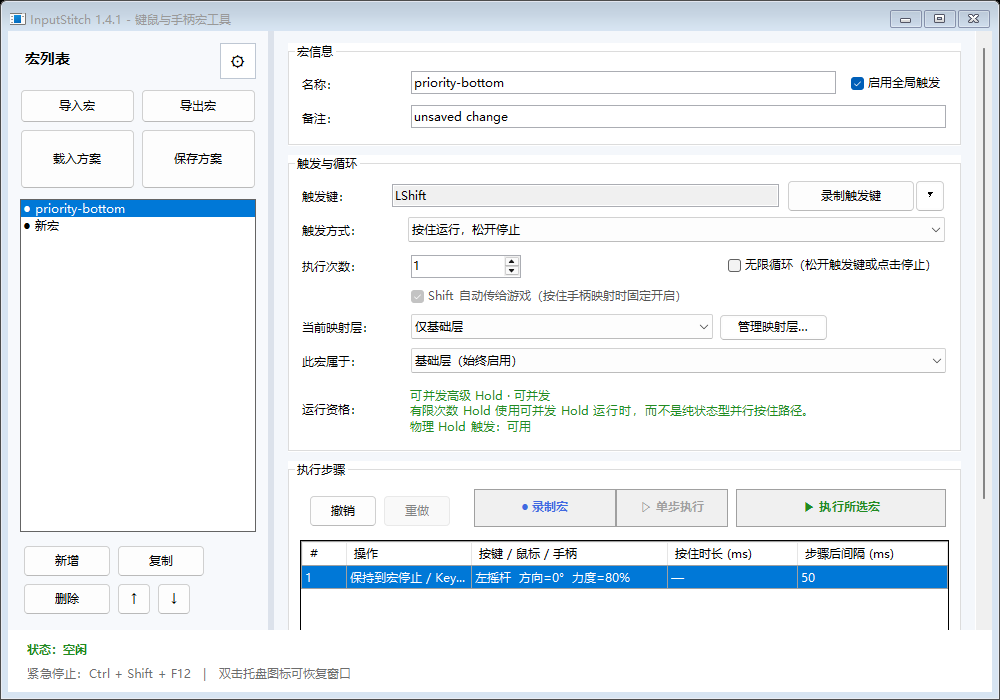
- 点击左侧 新增 创建一个宏并命名。Click New in the macro list and give the macro a name.
- 在“触发与循环”区域点击 录制触发键,按下你想用的键、鼠标键或支持的手柄控制。Under Trigger & Loop, choose Capture Trigger and press the desired keyboard, mouse or supported controller input.
- 在“执行步骤”区域添加一个键盘步骤,选择 K,设置按住时间和步骤后间隔。Add a keyboard step under Execution Steps, select K, then configure hold time and post-step delay.
- 保存方案,然后用 执行所选宏 或真实触发键测试。Save the profile, then test with Run selected macro or the real trigger.
三种最常用的创建方式Three common creation modes
不知道主编辑器每个字段是什么意思时,可以先从快捷创建进入。三个模板对应三类最常见需求。
If the full editor feels too dense, start with Quick Create. Its templates map directly to the three most common intents.
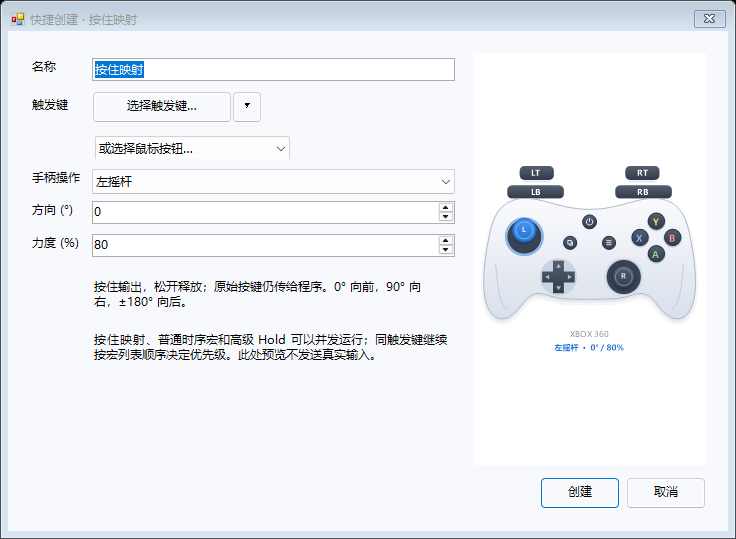
按住映射Held Mapping
触发键按着多久,输出就保持多久;松开触发键时,只释放这个映射自己的输出。适合“鼠标侧键 → 键盘键”“手柄 LB → 鼠标左键”等直接映射。
Keep the output active exactly while the trigger is held. Releasing it removes only this mapping’s contribution. Useful for direct remaps such as mouse side button → keyboard key.
顺序执行Sequence
多个动作按照“按住时间 + 步骤后间隔”串联,适合需要明确先后顺序的组合操作。普通时序宏可以与其他不同宏并发运行。
Chain actions using per-step hold duration and delay. Best for workflows that require explicit order. Ordinary timelines can run concurrently with other distinct macros.
重复动作Repeat
用于固定次数循环或无限循环。无限循环可通过对应的 Toggle/Hold 逻辑停止,也始终可以用紧急停止终止全部受管输入。
Use a finite repeat count or an infinite loop. Stop using the selected Toggle/Hold semantics—or use Emergency Stop to terminate all managed input globally.
手柄触发与虚拟手柄输出Controller triggers & virtual output
Windows 可见的 XInput 手柄可以直接作为宏触发来源。虚拟手柄输出则是可选能力,两者不是一回事。
Visible XInput controllers can be used directly as macro triggers. Virtual gamepad output is a separate, optional capability.
| 需求Goal | 是否需要 ViGEmBusViGEmBus required? |
|---|---|
| 键鼠 → 键鼠宏Keyboard/mouse → keyboard/mouse | 否No |
| XInput 手柄 → 键鼠宏XInput controller → keyboard/mouse | 否No |
| 输出虚拟 Xbox / DS4Output virtual Xbox / DS4 | 是Yes |
| 手柄汇总 / 实验性接管Controller aggregation / experimental takeover | 是Yes |
虚拟手柄类型Virtual controller type
在设置中可选择 Xbox 360、PS4 / DualShock 4,或 不创建虚拟手柄。选择“不创建”后,键鼠宏和手柄触发键鼠宏仍然可用。
Settings lets you choose Xbox 360, PS4 / DualShock 4, or Do not create a virtual controller. Keyboard/mouse automation still works in the no-controller mode.
安装 ViGEmBusInstall ViGEmBus
InputStitch 不会静默安装第三方虚拟手柄驱动。缺少驱动时,按程序提示前往 ViGEmBus 原作者的官方 Release 页面安装,完成后重启 InputStitch。
InputStitch does not silently install the third-party virtual gamepad driver. If needed, follow the in-app link to the official ViGEmBus releases, install it, then restart InputStitch.
ViGEmBus Releases ↗映射层Mapping layers
映射层适合“同一组实体按键,在不同状态下执行不同逻辑”。当前模型刻意保持简单:基础层始终有效 + 一次最多一个额外活动层。
Layers let the same physical controls mean different things in different contexts. The current model is deliberately simple: Base is always eligible + at most one additional active layer.
- 点击主界面的 管理映射层…。Open Manage layers… from the main window.
- 新增并命名一个层,例如“驾驶”“菜单”或“战斗”。Create and name a layer such as “Driving”, “Menu”, or “Combat”.
- 为该层录制键盘、鼠标或手柄切换触发。Assign a keyboard, mouse or controller switch trigger.
- 在每个宏的“此宏属于”中选择对应层。Assign each macro to that layer using its layer selector.
离开某个层时,该层正在运行的宏会停止并只释放自己的输出;基础层继续保留。切入新层时,如果某个新触发键本来已经被按住,必须先松开再重新按下,避免切层瞬间误触发。
Leaving a layer stops only that layer’s active sources while Base remains. Inputs already physically held when a layer becomes eligible must be released and pressed again, preventing accidental activation during a layer switch.
多个宏同时运行时发生什么?What happens when multiple macros run?
InputStitch 的核心不是“最后一次写入覆盖前面”,而是给每一个宏、路由来源和持续状态分配独立所有权,再计算最终输出。
InputStitch does not treat output as “last write wins.” Each macro, router source and persistent state contributes through independent ownership, and the final output is derived from those contributions.
- 数字按键:多个来源同时要求按下时,只要还有一个来源持有,它就不会被提前释放。Digital buttons: if multiple sources hold the same control, it remains held until the last owner releases it.
- 扳机:多个来源按明确规则合并,避免普通宏结束时把别人的模拟量清零。Triggers: sources merge deterministically rather than resetting another source’s analog contribution.
- 摇杆:向量合并并限制在合法范围内。Sticks: vectors merge and normalize into valid output range.
- 普通停止:只停止对应宏/来源。Ordinary stop: stops only the selected source/run.
- 紧急停止:全局最高优先级,一次释放全部受管输出。Emergency Stop: global highest priority; releases all managed output.
常见问题Troubleshooting
下载后直接运行即可吗?Can I run the EXE directly?
可以。它是便携 EXE,不要求安装器。系统需满足 .NET Framework 4.7.2+。
Yes. It is portable and does not require an installer, provided .NET Framework 4.7.2+ is available.
我完全不用手柄,还要装 ViGEmBus 吗?I never use controller output. Do I need ViGEmBus?
不需要。设置里选择“不创建虚拟手柄”即可。键鼠宏仍能正常工作。
No. Choose “Do not create a virtual controller.” Keyboard/mouse macros continue to work.
游戏看不到 InputStitch 的虚拟 Xbox 输出?My game does not see the virtual Xbox output.
先确认 ViGEmBus 正常、InputStitch 已连接虚拟手柄,并注意部分游戏只在启动时枚举手柄;可先连接虚拟手柄,再启动游戏。对于只读取 XInput 0 号槽位的游戏,还要关注 InputStitch 虚拟 Xbox 当前槽位。
Verify ViGEmBus, confirm the virtual pad is connected, and remember some games enumerate controllers only at startup—connect first, then launch the game. Games that only read XInput slot 0 may also depend on the virtual Xbox slot assignment.
某个宏失控或一直循环怎么办?A macro keeps looping or appears stuck. What do I do?
立即使用默认紧急停止 Ctrl + Shift + F12。随后再通过运行观察确认宏类型、触发方式和循环设置。
Use the default Emergency Stop Ctrl + Shift + F12 immediately, then inspect trigger mode, repeat settings and Runtime Observation before trying again.
还需要更深入的技术说明?Need deeper technical detail?
完整 README、开发路线、产品定位、已知限制和历史 Release 都保存在 GitHub 仓库中。
The repository contains the full README, roadmap, product strategy, known limitations and historical releases.